


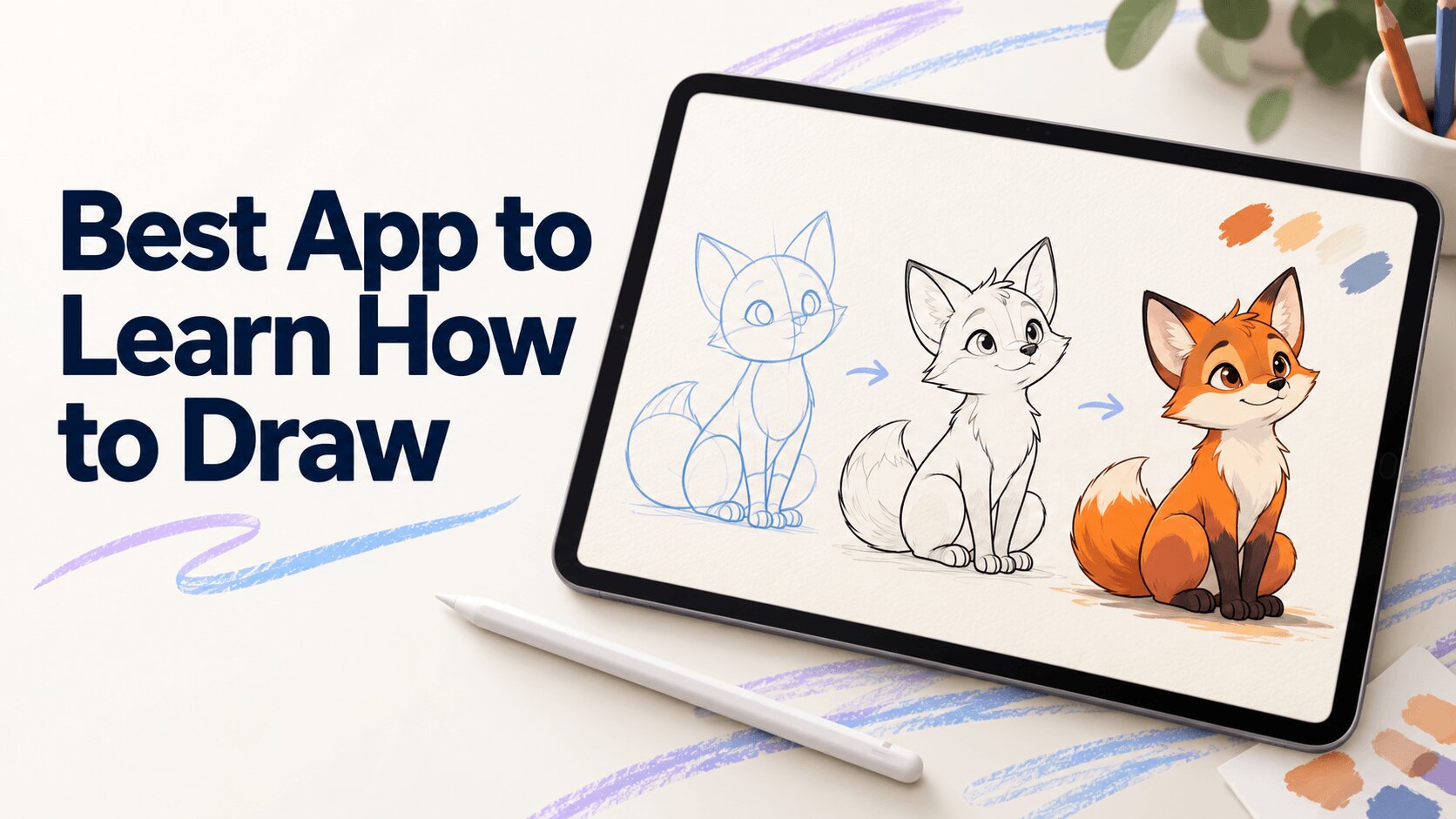
Learning to draw is easier when you have the right combination of clear instruction, regular practice, useful feedback, and drawing tools that match your skill level. Some drawing apps focus mainly on giving you a digital canvas, while others are designed to actually teach you how to draw.
If you're searching for the best apps to learn how to draw, the right choice depends on what you want to learn, how you prefer to practice, and whether you want guided lessons or a more independent drawing experience.
In this guide, we'll look at different approaches to learning drawing and what to consider when choosing a drawing app for beginners.
What Should You Look for in an App to Learn Drawing?
A good learn to draw app should do more than give you brushes and a blank canvas. For beginners especially, useful features can include:
- Step-by-step drawing lessons
- Visual guidance while drawing
- Clear text, voice, or video instruction
- Lessons for different skill levels
- Opportunities to practice independently
- Feedback that helps identify areas to improve
- Drawing tools that can be used beyond the lessons
- A range of subjects and art styles
The best choice ultimately depends on whether you want to learn drawing fundamentals, practice a particular style, draw digitally, or follow structured lessons.
Drawing Desk - Guided Lessons and Digital Drawing in One App
Drawing Desk combines guided drawing lessons with a digital drawing workspace, making it particularly relevant for people who want to learn and practice drawing within the same app.
Drawing Desk currently offers 2,000+ guided drawing lessons covering different styles and skill levels. Lessons include on-screen guidance along with text, voice, and video instructions. The app also provides personalized learning paths and goals. Learners can explore subjects and styles including anime, kawaii, caricatures, doodles, and other forms of digital art.
What makes Drawing Desk useful for learning?
One challenge beginners often encounter with conventional drawing software is knowing what to draw next. Having dozens of brushes doesn't necessarily teach you how to use them.
Drawing Desk takes a more structured approach.
A learner can follow a lesson using on-screen drawing guides, receive text and voice instructions, complete the drawing, and then continue practicing using the app's drawing tools. The current app also provides AI-based evaluation intended to give learners feedback on their drawing progress.
Good fit for: Beginners, kids, young artists, homeschooling families, and developing artists who want guided drawing lessons and digital drawing tools in one place.
Consider if: You want structured, interactive drawing lessons for independent learning, creative practice at home, or a fun art activity parents and homeschooling families can easily include in a child’s learning routine.
Simply Draw
Simply Draw takes a different approach.
Rather than primarily teaching you to create digital artwork on the screen, Simply Draw focuses on helping users learn and practice pencil drawing on paper. It provides step-by-step lessons and a customized learning journey based on what the learner is interested in drawing. Simply
That makes the distinction between the two approaches important.
If your goal is primarily traditional pencil drawing, an app built around paper-based practice may suit you. If you want lessons alongside a digital canvas and digital drawing tools, an app designed around digital creation may be more appropriate.
Good fit for: Beginners interested primarily in guided pencil drawing.
Consider if: You prefer drawing on physical paper rather than doing most of your drawing digitally.
ShadowDraw
ShadowDraw is another learning-focused option for beginners on iPad.
Its approach revolves around drawing tutorials that guide learners through stages of recreating existing drawings. TechRadar describes the app as specifically designed to teach beginners, with thousands of tutorials available and a step-by-step progression through each drawing.
This differs from general-purpose illustration software because the emphasis is placed on following guided drawing practice rather than simply providing professional art tools.
Good fit for: iPad users who want guided drawing exercises.
Consider if: Following existing drawings step by step matches the way you prefer to learn.
SketchPro
SketchPro is a better fit for users who want to create and practice digital art independently rather than follow a structured learn-to-draw program.
It provides a creative workspace with drawing and sketching tools that artists can use to explore ideas, practice techniques, and develop finished artwork. This makes it complementary to a lesson-focused experience: learners can build skills through guided instruction and use a digital art app like SketchPro when they want greater freedom to experiment and create independently.
Good fit for: Beginners and developing artists who want a dedicated digital workspace for sketching, drawing, and creative practice.
Consider if: You already have an idea of what you want to draw and prefer exploring digital art tools independently rather than following structured lessons.
Comparing the Best Apps to Learn How to Draw
| App | Pricing | Guided Lessons |
Text & Voice Guidance |
Free Trial / Free Access |
Key Features |
|---|---|---|---|---|---|
| Drawing Desk | Free download; premium options | Yes | Visual + text + voice | Free trial included | 2,000+ lessons, step-by-step guidance, learning paths, choose your goals, multiple art styles |
| Simply Draw | Free download; subscription | Yes | Guided lessons | Limited free access | Mini lessons, personalized learning, pencil drawing practice |
| ShadowDraw | Free download; IAP/subscription | Yes | Guided lessons | Limited free content | Follow-along tutorials, tracing-style guidance, Apple Pencil practice |
| SketchPro | Free download; premium options available | Not lesson-focused | No | Free access | Digital sketching, drawing and creative tools, brushes, layers, symmetry and rulers |
| Krita | Free | Not lesson-focused | No | Completely free | Brushes, layers, animation, painting and advanced illustration tools |
Why Drawing Desk Is Our Pick for the Best App to Learn How to Draw
For learners who want more than a blank canvas, Drawing Desk combines structured learning with hands-on drawing practice in one app. Beginners can follow guided lessons and then use the same creative workspace to practice what they’ve learned independently.
With 2,000+ guided drawing lessons, learners can explore a wide range of subjects and styles, including anime, kawaii, caricatures, doodles, and digital art. Lessons can provide on-screen visual guidance along with text, voice, and video instructions, helping users understand each stage of the drawing process rather than simply copying a finished image. Pasted markdown
Another advantage is the progression from learning to practicing. Drawing Desk provides personalized learning paths and goals, while AI-based evaluation is designed to provide feedback on drawing progress. After completing guided lessons, learners can continue creating with the app’s digital drawing tools.
This combination makes Drawing Desk a strong choice for beginners, kids, young artists, parents, homeschooling families, and developing artists who want an accessible and structured way to build drawing skills while still having the freedom to create their own artwork.
How to Choose the Right Drawing App for Beginners
Instead of asking only "What's the best drawing app?", consider what you actually want the app to help you accomplish.
- Decide what you want to learn
Someone interested in anime drawing has different learning needs from someone interested in portraits, caricatures or traditional pencil sketching.
Look at the actual lesson library rather than simply the number of lessons advertised.
- Decide how you prefer to learn
Some people learn effectively by watching videos.
Others prefer:
instruction → draw → feedback → practice
If you're in the second group, interactive or guided drawing lessons may be more useful than a conventional video library.
- Check whether you can practice outside lessons
Completing tutorials is only one part of learning.
Ideally, you should eventually be able to take what you've learned and create something without following every step.
A free-drawing canvas, useful brushes and familiar digital art tools can make that transition easier.
- Consider your device
Check compatibility before committing to a learning platform.
Someone drawing with an Apple Pencil on an iPad may have very different requirements from someone learning with a phone, Android tablet, desktop computer, or pencil and paper.
- Look beyond the number of features
More tools don't automatically make an app better for beginners.
A sophisticated professional application can be excellent for experienced artists while still presenting a steep learning curve to someone who hasn't yet learned basic drawing concepts.
For beginners, clear instruction and opportunities to practice can be just as important as advanced tools.
Frequently Asked Questions
Can You Really Learn to Draw Using an App?
Yes, an app can support learning to draw, but improvement still depends on practice.
Drawing involves skills such as observation, shape construction, proportion, line control, light and shadow, perspective, and visual problem-solving. An app can explain these concepts, demonstrate techniques, provide exercises and make practice more structured.
What it can't replace is the act of drawing repeatedly.
A useful learning cycle is:
Learn → Follow → Practice → Review → Draw independently
Over time, the goal should be to rely less on step-by-step assistance and become more confident making your own drawing decisions.
Is Drawing Desk Suitable for Beginners?
Drawing Desk is designed to accommodate different skill levels, including beginners. Its current listing describes structured learning paths, on-screen lesson guides, text and voice instructions, video lessons and guided lessons intended to help beginners learn from scratch. App Store
This makes it different from an app that simply opens to a blank digital canvas.
Beginners can start with guided instruction and then use the drawing workspace to practice independently.


